How to Take Stunning Beach Photos on Your Phone (No Camera Needed)
📷 Beach Photography on Your Phone
Great beach photos aren’t about the camera — they’re about light, timing and knowing where to point it.
The beach is one of the most beautiful and one of the most difficult environments to photograph. Harsh light, reflective water, blowing sand, moving waves — your phone’s auto settings weren’t designed for any of it. But with a few adjustments and some intentional timing, you can get shots that look genuinely stunning without carrying a DSLR or paying for editing software.
Here’s what actually makes the difference.
🌈 The Golden Hours (Sunrise and Sunset Timing)
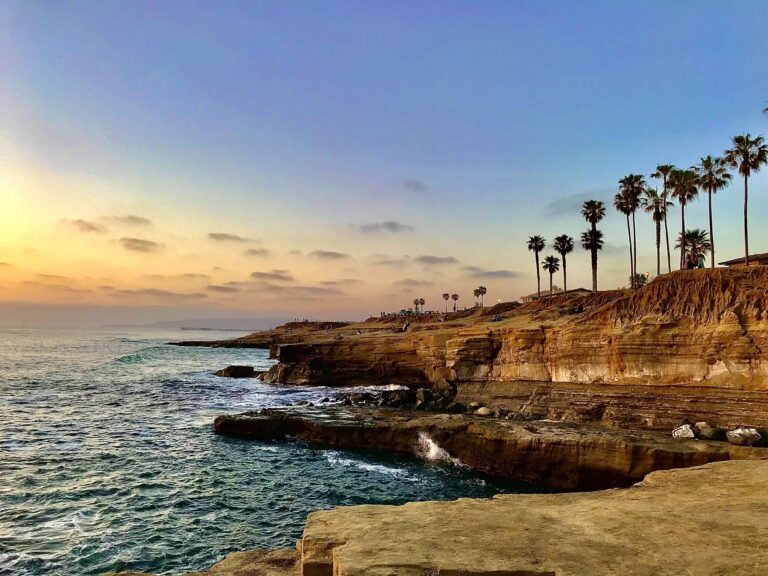
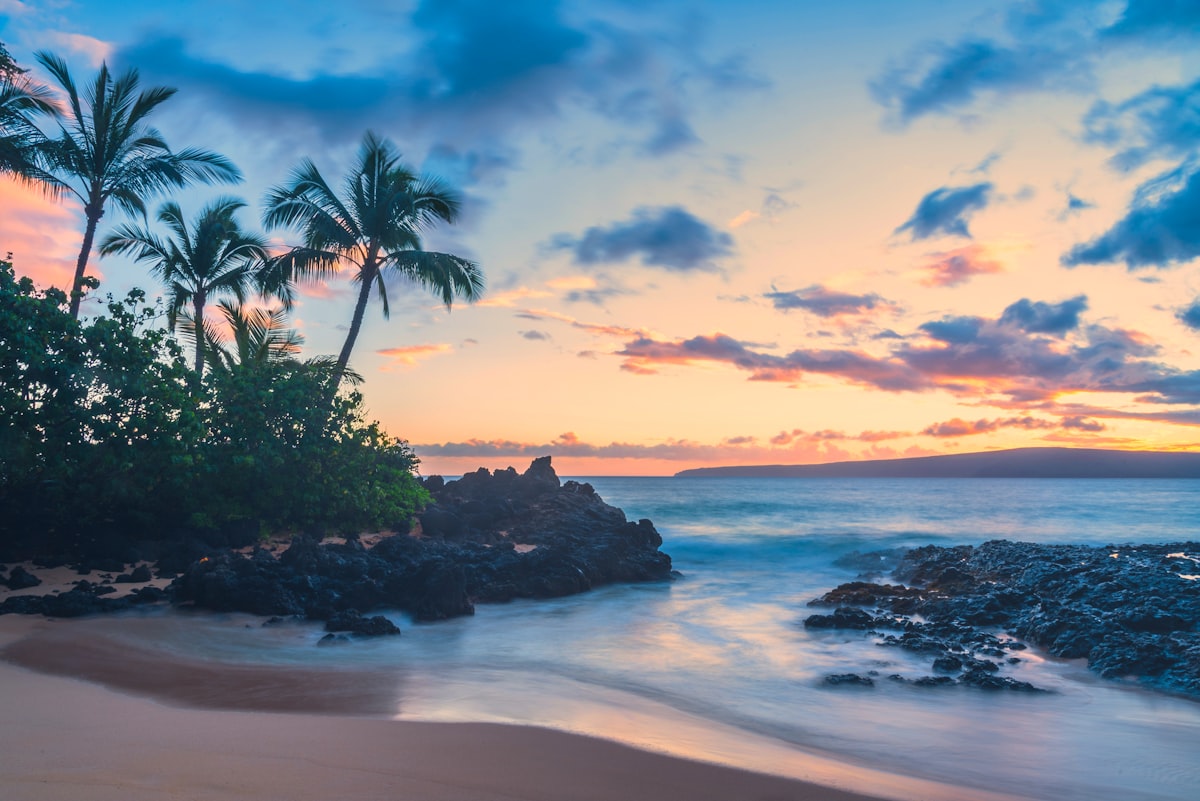
Professional photographers call the hour after sunrise and the hour before sunset the “golden hour” for a reason. The sun sits low on the horizon, casting warm amber light that flatters skin tones, reduces harsh shadows and makes the water glow. Shoot during these windows whenever you can — even mediocre composition looks great in golden hour light.
Sunrise has an added bonus: the beach is usually empty, so you get clean backgrounds without strangers walking through your frame. For sunset, arrive 20 minutes early to scout your position. Face the sunset for silhouettes, or face away from it so your subject is front-lit in warm gold.
☀️ Dealing with Bright Midday Light
Midday sun (roughly 10 AM to 3 PM) creates problems most people don’t know how to fix: squinting faces, harsh shadows under chins and eyes, and a washed-out sky. Here’s the workaround: find open shade. A beach umbrella, a pier overhang, or even a large shade tree gives you soft, even light that makes everything look better.
If you have to shoot in full sun, put the sun behind your subject and tap your screen on the subject’s face to expose for them (not the bright sky behind them). This creates a natural rim-light effect and avoids the squint entirely.
🌊 Getting the Water Right (Exposure Tips)
Water reflects sky, which means it reads as extremely bright to your camera. If you let the phone auto-expose for the entire scene, either the water blows out to white or everything else goes dark. Fix this by tapping directly on the water after you’ve framed your shot, then sliding the exposure slider down slightly — this brings out the blue and teal tones that make beach water look so beautiful.
For moving waves, use Live Photo (iPhone) or Motion Photo (Android) mode. You can extract a still frame from the exact moment of a wave crash or a splash, giving you naturally dynamic imagery without any special equipment.
💦 Underwater and Splash Shots
Most modern smartphones are rated IP68 or IP67 — meaning they can handle submersion in shallow water for short periods. That opens up a whole category of shots: low-to-the-water angles, waves breaking over your lens, feet in the shallows. Always rinse your phone in fresh water immediately after saltwater exposure and keep it out of water deeper than about 1 meter.
For splash action shots, use burst mode (hold the shutter button, or set it in camera settings). You’ll take 20-30 frames in two seconds and pick the one that caught the perfect mid-air water moment.
📸 Composition Tips for Beach Shots
The horizon line is the most common mistake in beach photography — people let it tilt slightly and don’t notice until later. Turn on your camera’s grid overlay (in Settings on both iPhone and Android) and use the horizontal line to keep the horizon level every time.
Also: don’t center everything. Place your subject one-third of the way in from the side (the rule of thirds). Use leading lines — a line of footprints, the curve of the shoreline, a pier — to draw the eye into the frame. And crouch down. Shooting from a lower angle makes people look taller and gives the sky and water more drama.
🎷 Best Free Editing Apps
The best free apps for beach photo editing are Snapseed (especially the “Selective” tool for targeting just the water or sky) and Lightroom Mobile (free version), which gives you precise control over highlights, shadows and teal-orange color grading. For quick social media edits, VSCO’s free filters — particularly A4 and A6 — work beautifully for bright, airy beach shots.
One editing tip: pull the highlights down and push the shadows up slightly. This is called “flattening the exposure” and it recovers detail in both the bright sky and the darker sand in a single move.